CubeSat Simulator · Volume 5
The Usage — Vol 5
Introduction
This final volume is operation: how to power the CubeSatSim1 up and down, what its LEDs are telling you, how to select each transmit mode, and — the part that makes it a satellite and not a blinking box — how to receive and decode its telemetry on a ground station. Everything here is drawn from the project’s own Quick Start and Ground Station guides.23
5.1 Power up, power down, charge
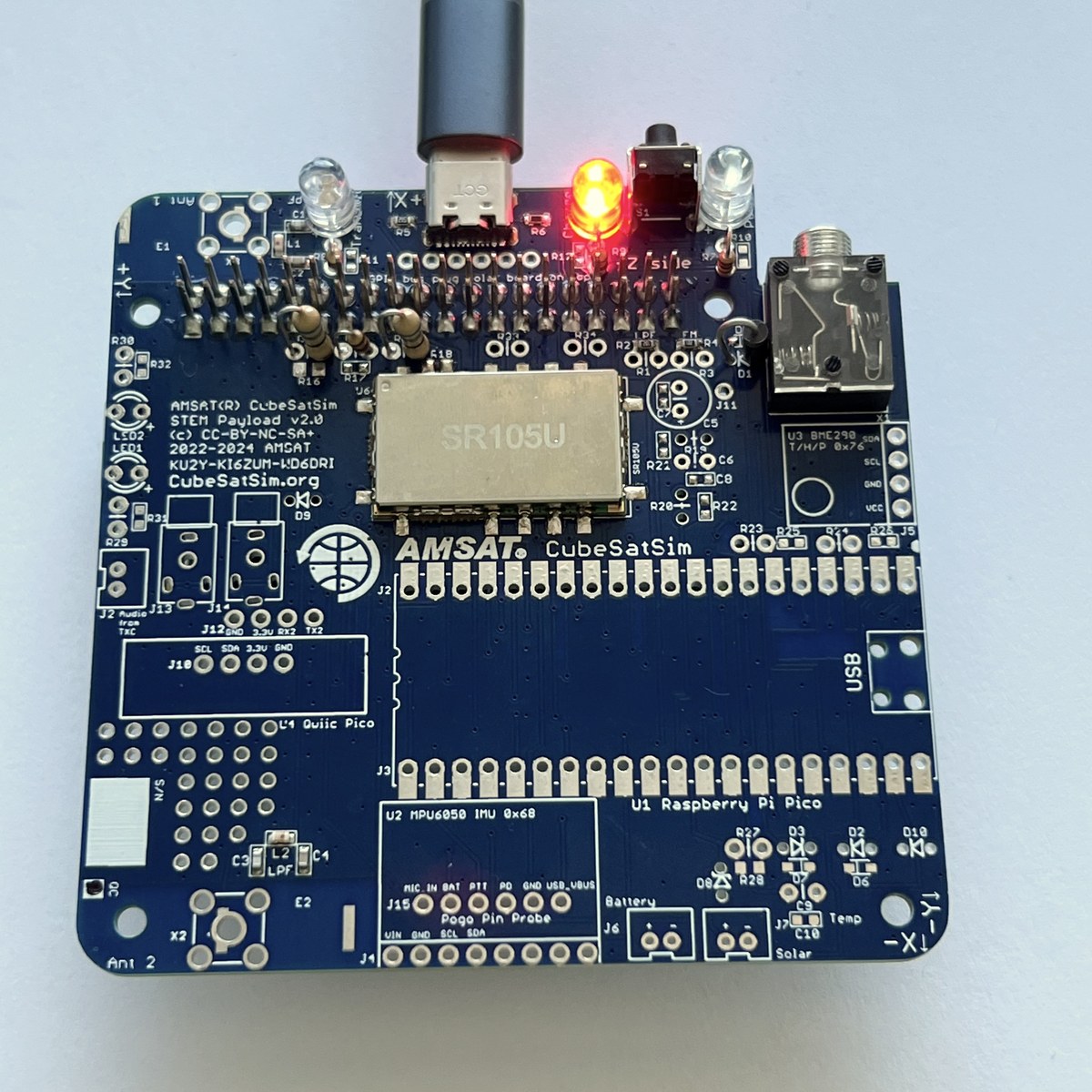
The CubeSatSim’s power behavior is governed by the Remove-Before-Flight (RBF) pin and the push-button, with the Green / Blue / Red LEDs as your status display.2
Turn on:
- If the RBF pin is inserted, simply pull it — the sim boots in ~30 seconds.
- If the RBF pin is already out, press and release the push-button; it boots in ~30 s. (If it won’t start, cycle the RBF pin; if still dead, the battery is flat — charge it.)
Turn off:
- Press and hold the push-button. The Green Power LED does a sequence of short blinks, then begins to blink slowly — release at the slow blink and the sim shuts down after ~30 s. When the Green and Blue LEDs are off, it’s down. Re-insert the RBF pin so the battery doesn’t slowly discharge in storage.
Charge:
- Plug a USB cable into the charging port — the Red Charging LED lights. Full charge takes several hours. Fastest charging is off, with the RBF pin in. (You can charge on or off, pin in or out.)
Table 1 — 1. Power up, power down, charge
| LED | Meaning |
|---|---|
| Green | Power / status (blink patterns during shutdown + mode change) |
| Blue | Transmit — lit while the radio is transmitting |
| Red | Charging |
5.2 The downlink — what you’ll hear
The CubeSatSim transmits on 434.9 MHz (it can drift ±5–10 kHz, so be ready to tune around). The Blue Transmit LED is lit whenever it’s on the air.2 At start-up and on every mode change it sends a CW (Morse) ID — “HI HI DE AMSAT by default or the one you configured on the Pi Zero during install. You can monitor it on any 70 cm FM radio/HT or on an RTL-SDR.
5.3 Selecting a transmit mode
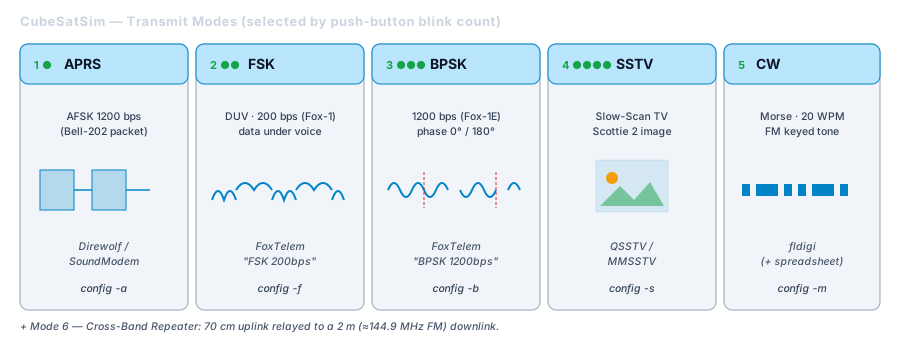
The sim has six operating modes. To change mode, press and hold the push-button while the Green Power LED blinks, and release on the Nth blink to select mode N (see table). A quick press-and-release instead triggers a reboot (~1 minute). Each mode can also be set from the Raspberry Pi with a config command.23
Table 2 — 3. Selecting a transmit mode
| Blinks | Mode | What it is | Decode with | Pi command |
|---|---|---|---|---|
| 1 | APRS | AFSK packet (Bell-202), 1200 bps — terrestrial packet style | Direwolf / SoundModem / WebSDR “Packet” | config -a |
| 2 | FSK | DUV (Data-Under-Voice), emulates Fox-1C / AO-95; “rumbling” sound | FoxTelem — “FSK 200bps (Fox1)“ | config -f |
| 3 | BPSK | emulates Fox-1E / HuskSat-1; sounds like noise (demod USB) | FoxTelem — “BPSK 1200bps (Fox1E)“ | config -b |
| 4 | SSTV | Slow-Scan TV image in Scottie 2 format | QSSTV / MMSSTV / WebSDR | config -s |
| 5 | CW | 20 WPM Morse-code telemetry | fldigi (+ telem spreadsheet) | config -m |
| 6 | Cross-Band Repeater | repeats 70 cm uplink onto the 2 m (145 MHz) downlink | listen on 144.9 MHz FM | (see CBR guide) |
Note the two Fox formats differ: FSK is 200 bps (Fox-1), BPSK is 1200 bps (Fox-1E) — you must set the matching Telem Format in FoxTelem or it won’t lock.
5.4 The ground station
To turn the sim from “a blinking box that buzzes” into a satellite you can actually read, you need three things: an SDR receiver, an antenna tuned to the band, and the software that demodulates and decodes each mode. The reference station packages all three on a Raspberry Pi, but the same recipe runs on any PC — or, in my case, the uConsole (§5.1).
The reference ground station is a Raspberry Pi running AMSAT’s pre-built image:3
- Raspberry Pi 3B or later (Pi 4/5 fine)
- RTL-SDR receiver + antenna (a ~$20 dongle — see §4.1–4.2)
- AMSAT “ARISS Pi” image on a micro-SD — it bundles FoxTelem, OpenWebRX/WebSDR, Direwolf, and QSSTV, pre-configured for the CubeSatSim on 434.9 MHz
- Power, keyboard/mouse, HDMI monitor
5.4.1 The RTL-SDR receiver
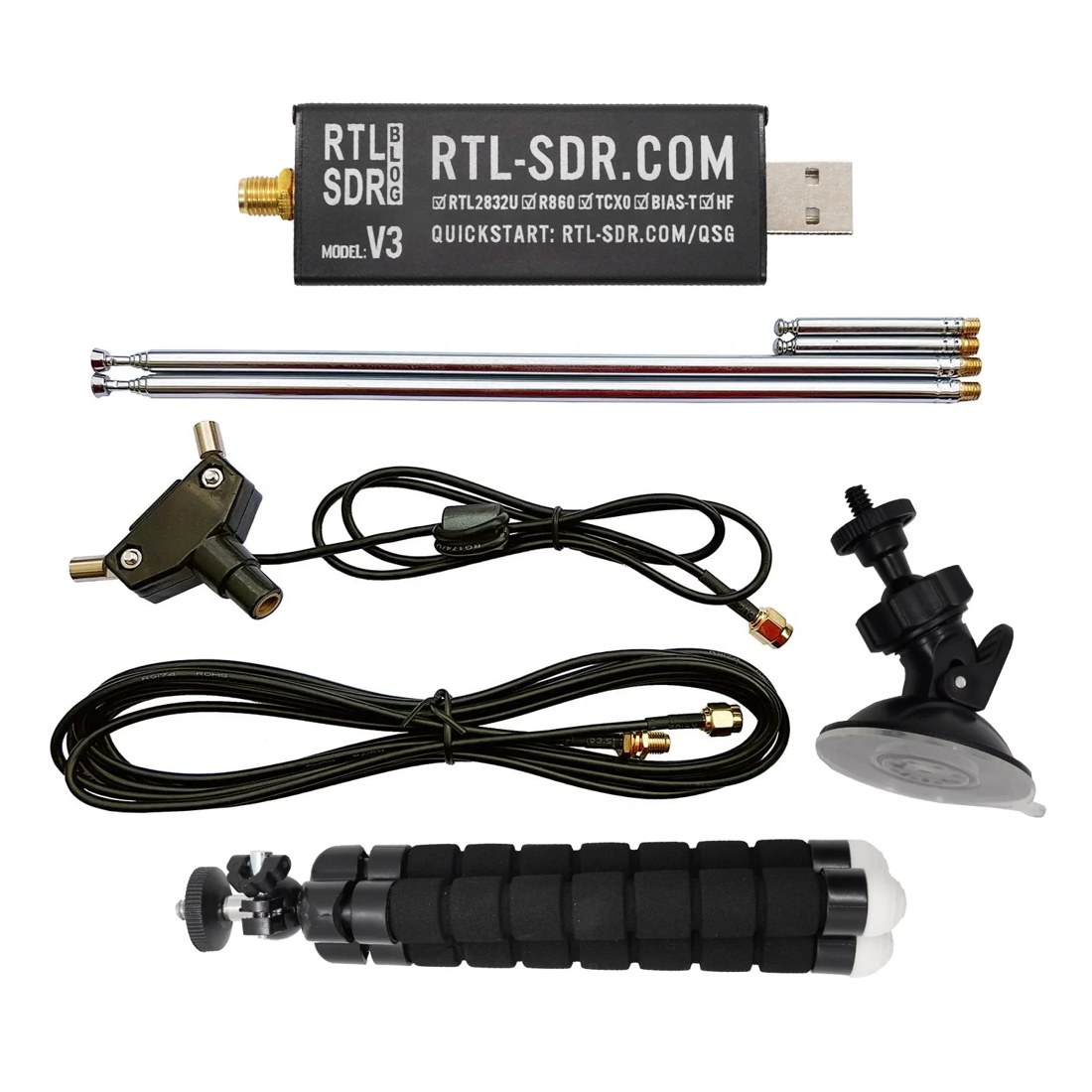
Any RTL-SDR dongle works, but the RTL-SDR Blog V3 or V4 is the one to buy: it has a temperature-compensated oscillator (TCXO, ≈1 ppm) that holds frequency steady — worth having, since the sim’s own transmitter drifts ±5–10 kHz and a cheap non-TCXO dongle adds its own wander on top. The RTL2832U + R820T2/R860 front end tunes roughly 24–1766 MHz, which covers both the 434.9 MHz (70 cm) telemetry downlink and the 145 MHz (2 m) Cross-Band-Repeater downlink.4
Practical settings to start from:
- Sample rate ~2.4 MSPS (the usual stable RTL-SDR rate).
- Gain — set manual, start around the middle, and raise it just until the signal is clean. Because the sim sits right next to the receiver, too much gain (or the 500 mW high-power mode at close range) will overload the front end and smear the whole waterfall — keep the sim in its default ~10 mW mode on the bench and give the antenna a little separation.
- PPM correction — near-zero on a TCXO V3/V4; on a cheap dongle, nudge it until the signal sits on 434.900.
- Leave the bias-tee off — no powered/active antenna is needed at this range.
5.4.2 Setting up the antenna
The sim is a tabletop transmitter, so you are not chasing a pass overhead — across-the-room reception is the normal case and even a stub whip will hear it. But a properly tuned, correctly polarized antenna still gives you the clean signal that BPSK/FSK lock needs, so it’s worth doing right.
- 70 cm (434.9 MHz) — a quarter-wave whip is ≈16.4 cm. The RTL-SDR Blog telescopic dipole kit is ideal: set each leg to ≈16.3 cm (a half-wave dipole, ≈32.7 cm tip-to-tip).5
- 2 m (145 MHz, Cross-Band Repeater) — retune the same dipole legs out to ≈49 cm each (quarter-wave for 2 m) when you switch to Mode 6.
- Polarization — mount the dipole vertically to match the sim’s vertical antenna; a 90° mismatch can cost you 20 dB.
- Placement — use the kit’s 3 m coax to get the antenna a little away from the Pi/uConsole (and its switching-supply noise), keep it off large metal surfaces, and “getting it up high and in the clear” helps once you start testing at real distances.5
5.4.3 The receiver software and tuning
On the ARISS Pi image the browser-based OpenWebRX / WebSDR is the front-end receiver; on a desktop the same job is done by SDR#, gqrx, or CubicSDR.3 FoxTelem (§5) can also drive the RTL-SDR directly and skip a separate receiver app for the digital modes. The workflow is always the same:
- Tune to 434.9 MHz (or 144.9 MHz for the repeater) and find the signal on the waterfall — the Blue Transmit LED on the sim tells you when it’s actually on the air.
- Pick the demodulator for the current mode (table below) — FM for the voice-band modes, USB for BPSK.
- Correct for drift — re-center on the carrier if it has wandered the ±5–10 kHz.
- Hand the audio to the decoder — FoxTelem for telemetry, QSSTV for images, Direwolf for APRS, the OpenWebRX decoder for CW.
5.4.4 Per-mode receiver settings
This is the receiver/demodulator side; the decode side (FoxTelem formats, QSSTV presets, etc.) is detailed in §5–§6.
Table 3 — 4.4 Per-mode receiver settings
| Mode | Frequency | Demod | Receiver app | Hand off to |
|---|---|---|---|---|
| APRS (1) | 434.9 MHz | NFM | OpenWebRX / SDR# | Direwolf (§6) |
| FSK / DUV (2) | 434.9 MHz | NFM | OpenWebRX / SDR# / FoxTelem | FoxTelem — FSK 200bps Fox1 (§5) |
| BPSK (3) | 434.9 MHz | USB | OpenWebRX / SDR# / FoxTelem | FoxTelem — BPSK 1200bps Fox1E (§5) |
| SSTV (4) | 434.9 MHz | NFM | OpenWebRX / WebSDR | QSSTV (§6) |
| CW (5) | 434.9 MHz | CW / USB | OpenWebRX | OpenWebRX CW decoder (§6) |
| Cross-Band Rptr (6) | 144.9 MHz | NFM | OpenWebRX (2 m band) | listen (§6) |
Bringing it up (ARISS Pi image):
- Turn the CubeSatSim on (start it in BPSK mode).
- Plug the RTL-SDR, keyboard/mouse, and monitor into the ground-station Pi and power it. The OS loads (~10 s) and FoxTelem auto-starts.
- On first launch, FoxTelem asks for a profile — choose “CubeSatSim — AMSAT CubeSat Simulator.” (FoxTelem setup in depth, including installing it yourself on the uConsole, is §5.)
5.5 FoxTelem — the telemetry decoder
What it is. FoxTelem is AMSAT’s open-source, cross-platform telemetry decoder and analysis tool, written by Chris Thompson (G0KLA / AC2CZ) for the Fox-1 series of CubeSats.67 It does three jobs at once: it demodulates the satellite’s digital downlink in software, decodes and stores the telemetry frames locally, and lets you graph and analyze the engineering values over time. It can also upload decoded frames to the AMSAT telemetry server (the “data warehouse”), where they feed the amateur-scientist experiments that fly on the real Fox birds. The CubeSatSim deliberately emulates the Fox-1 formats so this same flight-proven software decodes it unmodified — FoxTelem 1.09 added the FSK + BPSK sim modes.8
It handles the two digital CubeSatSim modes:
- FSK / DUV — 200 bps “data-under-voice,” the Fox-1 (e.g. AO-95) slow-speed format → set Telem Format = “FSK 200bps (Fox1).”
- BPSK — 1200 bps, the Fox-1E / HuskSat format → set Telem Format = “BPSK 1200bps (Fox1E).”
(The SSTV, APRS, CW and Cross-Band-Repeater modes use other decoders — see §6.)
How it takes its input. FoxTelem has built-in SDR support: it can read IQ directly from an RTL-SDR (or FUNcube Dongle / Airspy) and tune the dongle itself — point it at 434.9 MHz and you’re done.67 Alternatively you can run an external SDR app (gqrx / SDR# / HDSDR) and pipe the demodulated audio into FoxTelem through a virtual audio cable; either way FoxTelem only needs audio “with nothing below 200 Hz filtered out.”6
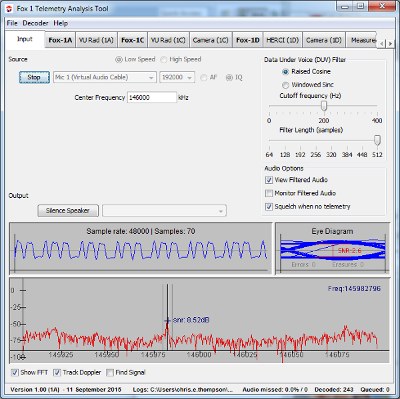
Reading the screen. On the Input tab the eye diagram and IQ display tell you whether you have lock — when the eye diagram “looks like an eye” and SNR is healthy, the frame count in the lower-left climbs (a fresh frame roughly every few seconds). Switch to the CubeSatSim-BPSK or CubeSatSim-FSK tab and confirm “Telemetry Payloads Decoded” keeps rising. (File → Delete Payload Files zeroes the counters for a clean session.)
What the telemetry shows. The Health / Measurements tabs display the real housekeeping a flight CubeSat reports: Radio (RSSI, TX antenna), Battery / Battery 2 (voltage, current), Computer Hardware (Pi temperature, bus), STEM Payload (BME280 temperature / pressure / altitude, MPU6050 IMU), and the six solar faces — ±X, ±Y, ±Z — each with voltage, current, rotation and acceleration. Shade a panel or warm a sensor and watch its value move in real time — the whole point of the simulator. FoxTelem also graphs any field over time, so you can plot a battery-discharge curve or the spin-induced ripple in a solar-face current.
5.5.1 Installing and running FoxTelem on the uConsole
My own ground station runs FoxTelem on a ClockworkPi uConsole (CM4) — a handheld Linux machine built around the same Raspberry Pi Compute Module 4 as the reference station, so AMSAT’s Pi guidance maps over almost directly, just on a 64-bit (aarch64) image instead of the old 32-bit one.7 The RTL-SDR plugs straight into the uConsole’s USB-A port.
1 — Java and the RTL-SDR libraries. FoxTelem is a Java application and runs on Java 8 or later. The old “OpenJDK won’t work — use Oracle Java” warning in AMSAT’s Pi guide was a 32-bit armhf, Java 7/8 quirk; on the uConsole’s modern 64-bit OS the packaged OpenJDK is fine:7
sudo apt update
sudo apt install -y default-jdk rtl-sdr librtlsdr-dev
2 — Free the dongle. The kernel claims RTL dongles for DVB-T TV by default; blacklist that driver so librtlsdr (and therefore FoxTelem) can grab the device, then reboot or replug:
echo 'blacklist dvb_usb_rtl28xxu' | sudo tee /etc/modprobe.d/blacklist-rtl.confConfirm the dongle is seen with rtl_test -t. The rtl-sdr package installs udev rules that let a normal user open the device — so you should not need sudo to run FoxTelem; if it still can’t see the dongle, add a plugdev udev rule and replug.7
3 — Install FoxTelem. Download the Linux tarball (FoxTelem_1.12z7_linux.tar.gz at time of writing) from g0kla.com/foxtelem, unpack it, and launch:67
tar xzf FoxTelem_*_linux.tar.gz
cd FoxTelem*
java -jar FoxTelem.jar      # or: chmod +x FoxTelem && ./FoxTelem
4 — First-run config. Choose the “CubeSatSim — AMSAT CubeSat Simulator” profile, set the Source to the built-in RTL-SDR, tune 434.9 MHz, and pick the Telem Format to match the sim’s current mode (BPSK 1200bps Fox1E, or FSK 200bps Fox1). Enter your callsign under Settings if you intend to upload frames to the AMSAT server.
5 — uConsole notes. The CM4’s quad-core Cortex-A72 decodes either mode comfortably; to keep CPU (and the handheld’s battery) down, run FoxTelem in a single mode rather than “Auto.” Its Swing GUI is dense for the uConsole’s 5-inch 1280×720 panel — run it maximized, and for first-time setup it’s easier to drive it on an external HDMI monitor, then go portable once it’s reliably locking.
5.6 Decoding each mode
5.6.1 Digital telemetry (BPSK & FSK) — FoxTelem
Handled by FoxTelem — see §5 for setup and for reading the display. In brief: BPSK (Mode 3) → Telem Format “BPSK 1200bps (Fox1E)”; FSK (Mode 2) → click Stop, set “FSK 200bps (Fox1)”, then watch the matching CubeSatSim-BPSK / -FSK tab as the frame count climbs.3
5.6.2 SSTV images — QSSTV / WebSDR
In SSTV (Mode 4), open QSSTV or the WebSDR app and pick the CubeSatSim preset (sets DIG → SSTV). Decoding starts when a new image transmission begins: the stored CubeSat image appears first; if a Pi Camera is fitted, subsequent frames show the live camera view.3
5.6.3 APRS packets — Direwolf / WebSDR
In APRS (Mode 1), run Direwolf or the WebSDR (preset to 434.9 MHz) and select “Packet” next to DIG — the APRS data and its waterfall signature appear.3
5.6.4 CW — OpenWebRX
In CW (Mode 5), open OpenWebRX and select the CW Decoder; you may need to offset slightly from center to lock the tone.3
5.6.5 Cross-Band Repeater — 2 m downlink
In Cross-Band Repeater (Mode 6), the sim relays a 70 cm uplink to a 2 m (≈144.9 MHz FM) downlink. In OpenWebRX choose the “RTL-SDR 2 m Ham Band 145 MHz (CubeSatSim Cross Band Repeater)” band and tune 144.9 MHz FM to hear anything transmitted on ~435 MHz (with default frequencies). See the project’s Cross-Band Repeater guide for details.3
5.7 A typical session
- Charge (Red LED), then pull the RBF pin → boots in ~30 s, CW ID “HI HI DE …”, Blue LED on.
- On the ground station, FoxTelem (§5) tuned to 434.9 — set the right Telem Format for the mode.
- Cycle modes with the push-button blink-count: BPSK/FSK → telemetry tables; SSTV → images; APRS → packets; CW → Morse; CBR → 2 m relay.
- Shade the panels / warm a sensor and watch the live telemetry respond — the whole point of the simulator.
- Press-and-hold to shut down (Green slow-blink), then re-insert the RBF pin for storage.
5.8 Operating legally
Transmitting on 434.9 MHz over the air is amateur-band operation — license + station ID rules apply (Vol 2 §5). The sim’s CW “HI HI DE AMSAT default when you transmit. For the full envelope, see the cross-references in Vol 2 (../../Scanners/.../vol4.md, ../../Hack Tools/Antennas/.../vol31.md).
References
Footnotes
-
The CubeSatSim is available as a ready-to-build kit from the AMSAT store — https://www.amsat.org/product/cubesatsim-kit/. ↩
-
CubeSatSim Quick Start Guide (Mar 2022) — https://cubesatsim.org/download/cubesatsim-qsg.pdf (on/off/charge; LEDs; 434.9 MHz; “HI HI DE CALLSIGN”; five-mode blink table +
configcommands; SSTV = Scottie 2). ↩ ↩2 ↩3 ↩4 -
CubeSatSim Ground Station Quick Start Guide — https://cubesatsim.org/download/groundstation-qsg.pdf (ARISS Pi image; FoxTelem profile “CubeSatSim”; BPSK “1200bps Fox1E” + FSK “200bps Fox1” formats; eye diagram/frame count; SSTV via QSSTV/WebSDR; APRS via Direwolf; CW via OpenWebRX; Cross-Band Repeater mode 6 on 145 MHz; telemetry display: battery, STEM payload, ±X/±Y/±Z panels). ↩ ↩2 ↩3 ↩4 ↩5 ↩6 ↩7 ↩8 ↩9
-
RTL-SDR.com — the RTL-SDR Blog V3/V4 dongle (RTL2832U + R820T2/R860 tuner, ≈24–1766 MHz, TCXO ≈1 ppm) covers both 434.9 MHz (70 cm) and 145 MHz (2 m). https://www.rtl-sdr.com/ ↩
-
RTL-SDR Blog Multipurpose Dipole Antenna Kit — telescopic dipole + 3 m coax; for the 70 cm band set each leg ≈16.3 cm (half-wave dipole ≈32.7 cm tip-to-tip), and “getting the antenna up high and outside improves reception significantly … tune the element length for the frequency being received.” https://www.rtl-sdr.com/product/rtl-sdr-blog-multipurpose-dipole-antenna-kit/ ↩ ↩2
-
FoxTelem — AMSAT Ground Station Software (Chris Thompson, G0KLA/AC2CZ). https://www.g0kla.com/foxtelem/ and https://www.amsat.org/foxtelem-software-for-windows-mac-linux/ — cross-platform Java decoder for the Fox-1 series; demodulates/stores/analyses telemetry and uploads decoded frames to the AMSAT server; built-in SDR support reads IQ directly from an RTL-SDR / FUNcube Dongle and tunes it (or accepts piped audio “with nothing below 200 Hz filtered”); Java 6+; latest stable 1.12z7 as of June 2026. ↩ ↩2 ↩3 ↩4
-
“A remote ground station with FoxTelem on the Raspberry Pi” — https://www.g0kla.com/foxtelem/foxtelem_on_pi.php (ARM/CM install: Java + USB/
librtlsdrlibraries, udev rules so root isn’t needed, RTL-SDR support from FoxTelem v1.06+, and running a single mode rather than “Auto” to limit CPU on ARM). The page’s Oracle-Java-8-vs-OpenJDK caveat is specific to the older 32-bit armhf Java 7/8 builds, not the uConsole’s 64-bit OS. ↩ ↩2 ↩3 ↩4 ↩5 ↩6 -
CubeSatSimPaper5.pdf — board-stack architecture and modes; FoxTelem v1.09 added the FSK-DUV + BPSK CubeSatSim emulation modes. (Also captured in
02-inputs/research/cubesatsim-research-dossier.md.) ↩
Comments (0)